
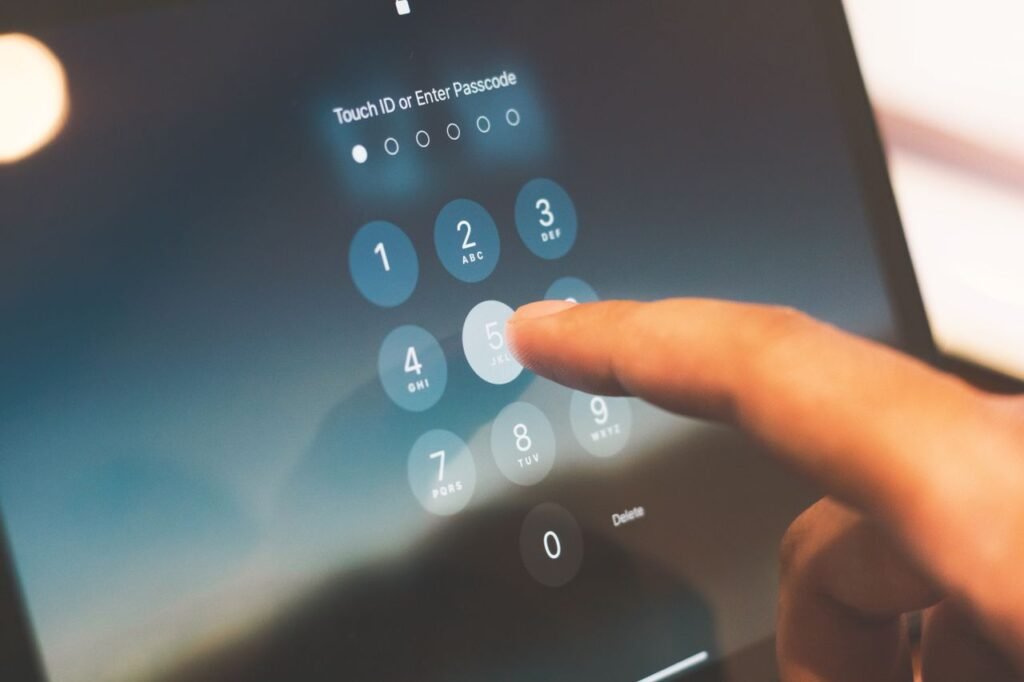
Your password is the front door to your digital life, guarding your email, your bank, your photos and your social media. The problem is that a password alone is a surprisingly weak lock: passwords get stolen in data breaches, guessed by automated tools, or tricked out of people by phishing messages. Two-factor authentication — usually shortened to 2FA — adds a second lock to that door, and it is one of the simplest, most effective things you can do to protect yourself online.
What two-factor authentication actually is
Two-factor authentication means proving your identity in two different ways before you are allowed in. The first factor is something you know: your password. The second factor is something you have, such as your phone, or something you are, such as your fingerprint or face.
When 2FA is turned on, signing in from a new device looks like this: you enter your username and password, then the service asks for a second check — a six-digit code from a device you own, a code from an authenticator app, a tap on a notification, or a physical security key. Only when both checks pass do you get in. If someone steals your password, they still cannot enter without your phone or key; if someone steals your phone, they still need your password.
Why a password alone is not enough
Even people who do not reuse passwords are at risk, because passwords leak constantly. When a website is breached, millions of usernames and passwords can end up for sale online, and attackers then try those stolen passwords on other services — a technique known as credential stuffing.
The main types of two-factor authentication
Not all second factors are equal. Some are much stronger than others, and the right choice depends on the account. Here are the main options, from weakest to strongest.
SMS text codes
With SMS two-factor authentication, the service sends a six-digit code to your phone by text message and you type it in. This is the most common form of 2FA, because almost everyone has a phone that can receive texts, and it needs no app or extra hardware.
It is also the weakest form. Text messages travel over the mobile phone network, which has known weaknesses. The biggest practical risk is a SIM-swap attack, where a criminal convinces your mobile carrier to move your number to a SIM card they control. Once that happens, your text-message codes go to them, not to you. The FBI’s Internet Crime Complaint Center recorded more than 2,000 SIM-swap complaints in 2023, with reported losses above 72 million dollars.
The official guidance has shifted clearly against SMS. In December 2024, the US Cybersecurity and Infrastructure Security Agency (CISA) advised people not to use SMS as a second factor for authentication. The US National Institute of Standards and Technology (NIST), in its digital identity guidelines SP 800-63B-4, finalised in July 2025, classifies SMS codes as a “restricted” authenticator — a service that still uses them must also offer a non-restricted alternative, warn users about the risks, and have a plan to move away from SMS.
Authenticator apps
An authenticator app on your phone generates a fresh six-digit code every 30 seconds. Popular examples include Google Authenticator, Microsoft Authenticator and Authy, and many password managers have a built-in authenticator too. You set it up once by scanning a QR code shown by the service, and from then on the app produces codes without needing a phone signal or an internet connection.
Authenticator apps use an open standard called TOTP, or time-based one-time password, defined in RFC 6238. Because the code is computed on your device from a shared secret and the current time, it never travels over the mobile network. SIM swapping cannot touch it, and it works on a plane or in a basement with no reception.
Authenticator apps are the sweet spot for most people: free, easy to set up, and much stronger than SMS. Their one real weakness is that a code can still be phished. If a fake login page tricks you into typing in a code within its 30-second window, an attacker can relay it in real time. That is a much harder attack to pull off than stealing a password, but it is possible, which is why the strongest accounts deserve an even better method.
Security keys and passkeys
A security key is a small physical device, about the size of a USB stick, that you plug in or tap against your phone when you sign in. It uses a cryptographic standard called FIDO2. The key proves it is the genuine device registered to your account, and it checks that the website asking is the real one — so a fake login page gets nothing. This makes security keys the only second factor that is genuinely phishing-resistant.
Apple added support for FIDO2 security keys for Apple ID in iOS 16.3, iPadOS 16.3 and macOS Ventura 13.2, and requires at least two registered keys so you always have a backup. Passkeys are the software version of the same idea: a FIDO2 credential stored on your device that replaces the password and the second factor in one step — you sign in with your fingerprint, face or device PIN, and Google notes that signing in with a passkey bypasses the second step because the passkey itself proves you hold the device. Apple and Google also use trusted-device prompts: a sign-in on a new device sends a notification to a device you already own, where you approve it and see a verification code. Treat every prompt with suspicion — if you did not just try to sign in, tap “Don’t allow” and change your password.
How to turn on two-factor authentication for your Apple ID
Two-factor authentication is the default security method for most Apple Accounts, and all new Apple IDs created since 2019 have had it enabled by default.
On an iPhone or iPad, open Settings and tap your name at the top. Tap Sign-In & Security, then tap Two-Factor Authentication. If it is already on, you will see your trusted phone numbers listed and no option to turn it off. If it is off, tap Turn On Two-Factor Authentication and follow the on-screen steps, adding a trusted phone number that Apple can use to send verification codes by text or voice call.
On a Mac, open System Settings, click your name, then click Sign-In & Security and turn it on there. On the web, sign in at account.apple.com and choose Upgrade Account Security. Apple says that if your account was created with two-factor authentication, the extra protection cannot be removed; if you turned it on yourself recently, you have about two weeks to change your mind using a link in the confirmation email Apple sends you.
How to turn on 2-Step Verification for your Google account
Google calls its version 2-Step Verification, and the setup is straightforward. Open your Google Account, tap Security & sign-in, and under “How you sign in to Google”, select Turn on 2-Step Verification. Then follow the on-screen steps.
Google will first ask you to verify a phone number, then let you choose your second steps: Google prompts on your phone, an authenticator app, a security key, or backup codes. Choose an authenticator app or a security key over SMS where possible. You can also add a passkey to your Google account, which then lets you sign in without a password and without a separate second step.
What to do if you lose access to your second factor
The fear that stops many people from turning on 2FA is getting locked out. A lost phone, a broken phone, or an authenticator app deleted by accident can all leave you unable to produce a code. The answer is to prepare recovery options before you need them, while you still have access.
First, save your backup codes. Many services, including Google, let you generate a set of one-time backup codes when you turn on 2FA. Print them and keep them somewhere safe, such as a locked drawer — not in a photo on the same phone they are meant to rescue.
Second, register more than one second factor and keep your recovery information current: add a second trusted phone number, register two security keys, and check once or twice a year that the phone numbers and recovery email on your Apple ID and Google account are ones you still use.
Which accounts should get two-factor authentication first
You do not have to do everything in one sitting. Start with the accounts that protect everything else, then work outward.
Start with your email account, because it is the key to resetting almost every other account you own. Next come your password manager, your bank and financial accounts, and your cloud storage. Use a passkey or a security key for your most important accounts, an authenticator app for everything else that offers it, and SMS only when a service offers nothing better — never SMS alone for the email account you use to reset your other passwords.
Two-factor authentication will not stop every attack — it cannot help if malware is already on your device — but it closes the easiest door into your accounts. Most account takeovers start with a stolen password, and 2FA makes a stolen password nearly useless on its own.
Sources
- Apple Support, “Two-factor authentication for Apple Account” — https://support.apple.com/en-us/102660
- Google Account Help, “Turn on 2-Step Verification” — https://support.google.com/accounts/answer/185839
- CISA, guidance on SMS as a second factor, December 2024 — https://www.cisa.gov
- NIST, SP 800-63B-4, Digital Identity Guidelines, July 2025 — https://csrc.nist.gov
Related reading
- Online Scams in 2026: Messages, Calls and AI Voices — how scammers try to steal your passwords and codes, and how to spot them.
- Is It Safe to Put Personal Information in ChatGPT? — what happens to the personal details you share with AI tools.